
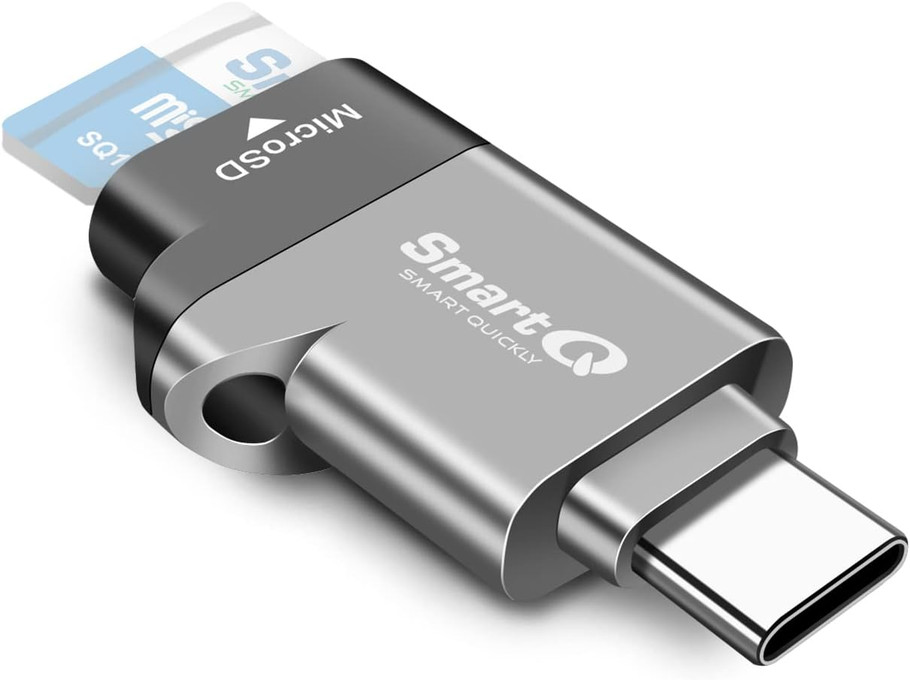
Copy GoPro, Drone or Dash Cam Video from a microSD Card
Posted by SmartQ Team on Nov 5th 2026
Action cameras, drones and dash cams save video to a microSD card. A small USB card reader is often the most direct way to copy that video to a phone or computer, without Wi-Fi or the camera's app. This guide covers which reader to use, where the files are, and the steps for each device.
Which reader do I need for a microSD card?
Pick the reader by the port on the device you are copying to: USB-C, Lightning or USB-A. All SmartQ readers below read microSD cards, and most also read full-size SD cards. All are USB 3.0 readers, up to 5Gbps, but the 3-in-1 runs at USB 2.0 speed on its Lightning plug.
| Copying to | SmartQ reader |
|---|---|
| Android phone or tablet with USB-C | USB-C microSD reader or C350 |
| iPhone 15 or later, USB-C iPad | USB-C microSD reader or Zinc Alloy USB-C reader |
| iPhone 14 or earlier, Lightning iPad | 3-in-1 reader |
| Computer with USB-A | C307 |
| Computer with USB-C | C350 (also has a USB-A plug) |
Where are the video files on the card?
Most cameras save into a folder named DCIM. GoPro cameras use DCIM, then 100GOPRO (then 101GOPRO and so on). Garmin dash cams use DCIM with folders such as 100EVENT for incidents and 102SAVED for clips you saved. Other brands use their own names, so check your camera's manual.
- GoPro split files: long GoPro videos are saved as several files in a row, called chapters. GoPro says chapters are about 4GB on many models, or about 12GB on some newer models with a 64GB or larger card. Copy every part. Editing software plays them back as one video.
- GoPro .LRV and .THM files: these are a low-resolution copy and a thumbnail that GoPro's Quik app uses. GoPro says they aren't meant to be used on their own. For editing, copy the .MP4 files.
- Dash cam loop recording: Garmin dash cams delete the oldest unsaved video when the card is full. Copy important clips soon, or save them in the camera first.
How do I copy video to an Android phone?
Plug the reader into the phone and open the Files by Google app. Your phone must support USB host mode, often called USB OTG. Google's Android developer guide says this support depends on the device. Files by Google needs Android 7.0 or later to open USB storage.
- Insert the microSD card into the reader and plug the reader into your phone.
- Open Files by Google and tap the USB available notification. If it doesn't open, unplug the reader and try again.
- Tap the storage device, then tap Allow.
- Under Storage devices, tap the card and open the DCIM folder.
- Tap the Down arrow next to a file, then Copy to. Pick a folder and tap Copy here.
Google explains these steps in Use USB storage devices. On a Samsung Galaxy phone you can also use the My Files app. Open My Files, then USB storage. When you finish, Samsung says to open the notification panel and tap Unmount before you unplug.
How do I copy video to an iPhone or iPad?
Use the Photos app for normal camera video: plug in the reader, open Photos and tap Import. If a clip doesn't show up, open the Files app instead. Apple says Photos may not import files that were renamed or edited, and some video formats won't play on iPhone.
Our guide How to import photos from an SD card to iPhone or iPad has the full steps. Note that the standard iPhone 15, 16, 16e, 17 and iPhone Air copy at USB 2 speed, so large 4K files take longer than on a Pro model.
How do I copy video to a computer?
Plug in the reader and open the card like a USB drive. On Windows, open File Explorer and look under This PC. On a Mac, click the card in the Finder sidebar. Open the DCIM folder and drag the files to your computer. GoPro describes the same method for its cameras.
- Insert the card and plug the reader into the computer.
- Windows: press the Windows logo key + E, select This PC, then open the card. Mac: open Finder and click the card in the sidebar.
- Open DCIM and copy the video folders to your computer.
- Eject before you unplug: Safely Remove Hardware on Windows, or drag the card icon to the Trash on a Mac.
Should I erase the card after copying?
Yes, but only after you have checked that the copies play. Then format the card in the camera, not on the computer. GoPro recommends formatting cards often from the camera's own settings. Formatting erases everything on the card, including clips you saved.
Need help? Email service@smartq.com with your reader model and your device.
Last updated: November 2026