
How to Transfer DJI Drone Footage to iPhone (Mini 4 Pro, Mini 5 Pro, Avata 2)
Posted by SmartQ Team on Nov 24th 2026
Last updated: November 2026
If your DJI drone records to a microSD card, you can copy the footage to an iPhone without the DJI Fly app. Put the card in a reader that fits your iPhone, then use the Photos or Files app. A full 64 GB card takes about 30 minutes on a standard iPhone (a typical estimate at 35 MB/s over USB 2.0). The DJI Fly app can also download a few clips from the drone over Wi-Fi.
What are the ways to get DJI footage onto an iPhone?
DJI lists four ways: QuickTransfer straight to your phone, downloading through the DJI Fly app with the remote controller, a USB cable to a computer, and a card reader. QuickTransfer is easy for a few clips. A card reader is good for a whole card.
| Way | Good for | Keep in mind |
|---|---|---|
| QuickTransfer (Wi-Fi to the phone) | A few clips right after a flight | Needs the DJI Fly app and a powered-on drone. DJI lists up to 30 MB/s over Wi-Fi for the Mini 4 Pro and Avata 2. |
| DJI Fly app download with the remote | Quick previews | DJI says only H.264 videos can be exported to a phone this way. |
| Card reader | A whole card, H.265 files too | No app to install, and the drone can stay off. Standard iPhones copy at USB 2 speed. |
| USB cable to a computer | Big copies to a computer | Uses a USB-C cable. It can also copy from the drone's internal storage. |
DJI's guide shows the card reader with a computer. An iPhone works too, with a reader that fits its port.
Which card reader fits my iPhone?
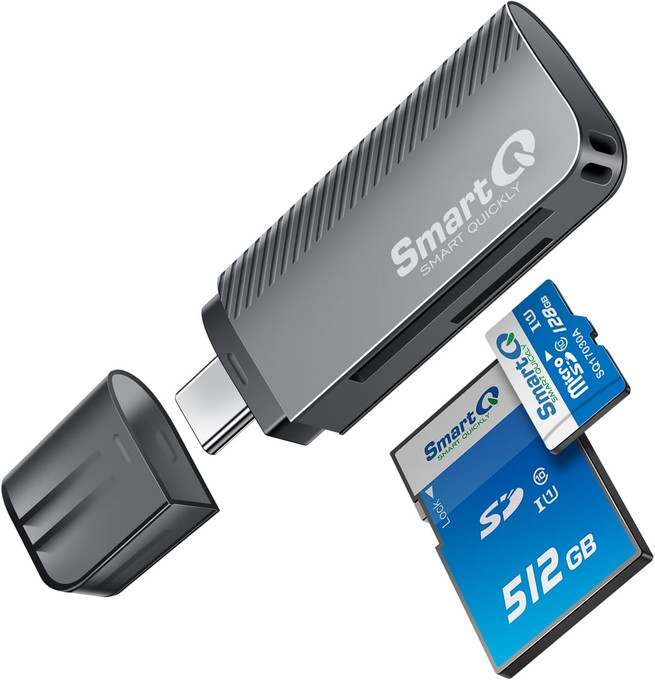
Look at the charging port. iPhone 15 and later have USB-C. iPhone 14 and earlier use Lightning. The Mini 4 Pro, Mini 5 Pro and Avata 2 use microSD cards, so pick a reader with a microSD slot.
| Your iPhone | SmartQ reader |
|---|---|
| iPhone 15 or later (USB-C) | USB-C microSD reader for microSD, or C350 or Zinc Alloy USB-C reader for SD and microSD. Standard iPhones copy at USB 2 speed. |
| iPhone 14 or earlier (Lightning) | 3-in-1 reader (Lightning, USB-C and USB-A plugs). The Lightning plug copies at USB 2.0 speed. |
| You also shoot on a camera with CompactFlash (CF) cards | For CF on USB-C, use the C368 USB-C. It reads CompactFlash. CFexpress and CFast need another reader. |
How do I copy the footage with the Photos or Files app?
Put the drone's microSD card in the reader and plug the reader into the iPhone. Then import with Photos, or open the card in Files to see every file. No extra app is needed.
- Put the microSD card into the reader, then plug the reader into your iPhone.
- Photos: open Photos and tap Import. On iOS 18, tap Collections, then your card under Devices. Choose Import All, or pick clips.
- Files: open Files, tap Browse, then your card under Locations. Copy the video files you want.
- When you're done, unplug the reader and put the card back in the drone.
If Photos does not show some clips, open the card in the Files app instead.
Will my iPhone play DJI's H.265 video?
It should, on iOS 11 or later. Apple says support for HEVC (H.265) video is built into iOS 11 and later. On some older devices, support depends on the resolution and frame rate. Apple says 1080p or lower, at 60 frames per second or lower, works on more of them.
Copying is a separate step. DJI puts its H.264-only tip under Download (the app with the remote). A card reader does not use the app. In Files, browse to the card and copy the video file. If a clip won't play smoothly, try a lower resolution or frame rate next time.
Why is copying slow on my iPhone?
Usually the iPhone's port sets the speed. The standard iPhone 15, 16, 16e, 17 and iPhone Air copy at USB 2 speed over USB-C. iPhone 15 Pro, 16 Pro, 17 Pro and 18 Pro models and iPhone Duo support USB 3. Lightning iPhones copy at USB 2.0 speed.
| Copy a full 64 GB card | Time (typical estimate) |
|---|---|
| Standard or Lightning iPhone, over USB 2.0 (typical 35 MB/s) | about 30 minutes |
| iPhone Pro or a computer, over USB 3.0 (typical 80 MB/s) | about 13 minutes |
These times are typical estimates. See How much footage fits on your card for other card sizes. For port, card and hub checks, see Why is my SD card reader slow? At these typical speeds, a computer with a USB 3.0 port takes less than half the time of a standard iPhone.
What if my footage is on the drone's internal storage?
Then a card reader cannot copy it. A card reader reads only the card in its slot, so footage saved to the drone's internal storage stays in the drone. DJI lists 2 GB of internal storage on the Mini 4 Pro, 42 GB on the Mini 5 Pro and 46 GB on the Avata 2.
Copy that footage with a USB-C cable to a computer. If a card looks empty, check where the footage is stored. DJI's guide says to do this before you export.
What if the card doesn't show up?
- Unplug the reader, wait a few seconds and plug it back in.
- Restart the iPhone and update iOS.
- Check the card format. iPhone reads cards with one partition in exFAT, FAT32, FAT, APFS or Mac OS Extended.
- Try the card in a computer. If it fails there too, the card may have a problem.
Still stuck? Email service@smartq.com with your reader, iPhone and drone model. See all readers for drones and action cameras or compare card readers.