
How to Import Photos from an SD Card to iPhone or iPad
Posted by SmartQ Team on Nov 5th 2026
You can copy photos and videos from a camera's SD or microSD card straight to an iPhone or iPad. You need two things: a card reader that fits your device's port, and the Photos app or the Files app. This guide shows which reader to use and what to tap.
Which card reader fits my iPhone or iPad?
Look at the charging port. iPhone 15 and later models have USB-C. iPhone 14 and earlier models use Lightning. Many iPads have USB-C, but older models such as iPad (9th generation) use Lightning. Apple keeps a list of iPads with USB-C.
| Your device | Port | SmartQ reader |
|---|---|---|
| iPhone 15 or later, USB-C iPad | USB-C | C350, Zinc Alloy USB-C reader or 3-in-1 reader (SD and microSD) |
| iPhone 15 or later, microSD only | USB-C | USB-C microSD reader |
| iPhone 14 or earlier, Lightning iPad | Lightning | 3-in-1 reader (USB-C, Lightning and USB-A plugs) |
| You also use CF or Memory Stick cards | USB-C | C368 USB-C or C368 Pro |
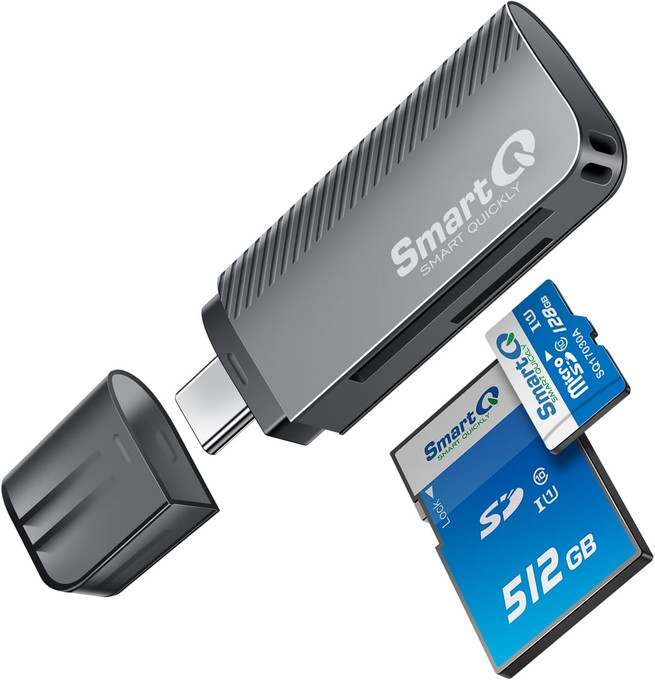
Apple also sells a USB-C to SD Card Reader. It has one SD slot and supports faster UHS-II cards, so it is a good choice if you only use full-size SD cards. A microSD card needs an SD adapter in it. SmartQ's SD readers add a microSD slot, and the C350 and 3-in-1 reader also have a USB-A plug for computers with a USB-A port.
How do I import photos with the Photos app?
Put the card in the reader, plug the reader in, open Photos and tap Import. You can import everything or only the items you pick. The steps are the same on iPhone and iPad, and no extra app is needed. Apple lists them in its iPhone User Guide.
- Insert the card into the reader. Don't force it. It fits only one way.
- Plug the reader into your iPhone or iPad.
- Open the Photos app and tap Import. On iOS 18, if you don't see Import, tap Collections, scroll to Devices, then tap your card.
- Tap Import All. Or tap the items you want, tap Import, then Import Selected.
- Choose whether to keep or delete the items on the card. Then unplug the reader.
Apple says Photos imports content captured by digital cameras. Files that were renamed, edited or copied onto the card may not import. Use the Files app for those.
How do I see the card in the Files app?
The Files app shows everything on the card, including videos and documents that Photos may not import. Open Files, tap Browse, then tap the card's name under Locations. From there you can open, copy or move files, the same way you do with files on your iPhone.
- Open the Files app and tap Browse.
- Under Locations, tap the name of the card. If you don't see Locations, tap Browse again.
- Touch and hold a file to see Copy and Move. To work with several files, tap the More button, then Select.
If the card doesn't appear, check its format. Apple says the card must have one partition and use APFS, Mac OS Extended (HFS+), exFAT, FAT32 or FAT.
Why is copying slow on my iPhone?
Usually the iPhone port sets the speed. The standard iPhone 15, iPhone 16, iPhone 16e, iPhone 17 and iPhone Air use USB 2 speed, up to 480Mb/s. Lightning iPhones also use USB 2. Only Pro models and iPhone Duo support USB 3, up to 10Gb/s.
| iPhone | Data speed |
|---|---|
| iPhone 15 Pro, 16 Pro, 17 Pro and 18 Pro models, iPhone Duo | USB 3, up to 10Gb/s |
| iPhone 15, iPhone 16, iPhone 16e, iPhone 17, iPhone Air | USB 2, up to 480Mb/s |
| Lightning iPhones (iPhone 14 and earlier) | USB 2 |
SmartQ readers run at up to 5Gbps (USB 3.0), so on a Pro iPhone the reader and the card set the limit. If you add a cable between the iPhone and an accessory, Apple says it must be a USB 3 cable for USB 3 speed. The cable that comes with the iPhone is USB 2. On the 3-in-1 reader, the Lightning plug works at USB 2.0 speed. iPad speed depends on the model. For more speed tips, see Why is my card reader slow?
What if the card or the Import button doesn't show up?
First unplug the reader, wait 30 seconds and plug it back in. If that fails, restart the iPhone or iPad and update iOS or iPadOS. These are Apple's own first steps. Then try the card in a computer to make sure the card itself works.
- Unplug the reader, wait 30 seconds, then reconnect it.
- Restart your iPhone or iPad.
- Update to the latest iOS or iPadOS.
- Try another card. If other cards work, the first card may have a problem.
Still stuck? Email service@smartq.com with your reader model and your iPhone or iPad model.
Last updated: November 2026