
Last updated: November 2026
Quick start guide for the SmartQ C368 Card Reader (SD, microSD, CF, MS) (model C368).
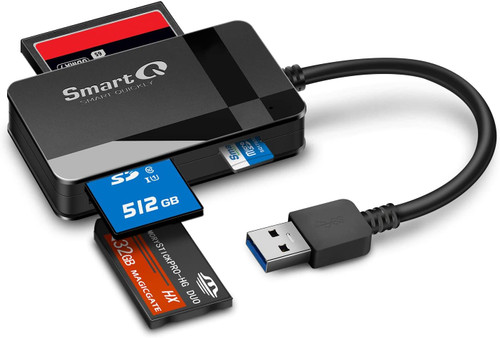
At a glance
- Plug: USB-A
- Card slots: SD, microSD, CF, MS
- Speed: USB 3.0, up to 5Gbps
- Works with: Windows, Mac, Linux
- In the box and warranty: C368 card reader, cable organizer and user manual (memory cards not included). 1-year limited warranty from SmartQ.
On a computer
- Put the memory card into its slot. It fits only one way, so don't force it.
- Plug the reader into a USB-A port on your computer. A USB 3.0 port gives full speed. USB 2.0 ports work too, but slower.
- Windows: open File Explorer. The card shows as a drive under This PC. Mac: the card shows in the Finder sidebar.
- Copy your files. Photos and videos are usually in the DCIM folder.
- Eject before you remove the card. Windows: right-click the card in File Explorer and choose Eject. Mac: click the eject button next to the card in Finder.
Good to know
- Use one card at a time.
- Reads CompactFlash (CF) cards. It does not read CFexpress or CFast cards. They look similar but use a different connection.
If something doesn't work
- Card doesn't show up? Take the card out and put it back in. Then try another port.
- Plug the reader straight into the device, not through an extension cable.
- Try the card in another device. If it fails there too, the problem is the card.
- Slow? Use a USB 3.0 port and a fast card. A USB 2.0 port limits the speed.
More help
Still stuck? Email service@smartq.com or call (769) 236-0863 with your model and device.