
Last updated: November 2026
Quick start guide for the SmartQ H323S 4-Port USB Hub (model H323S).
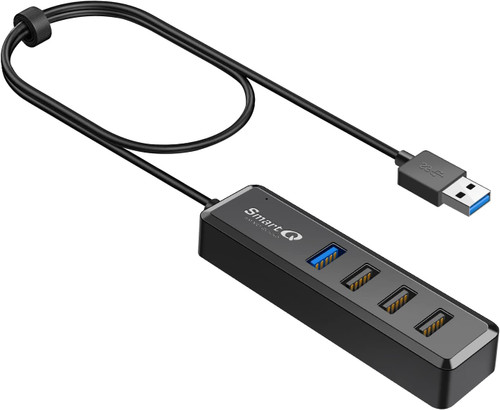
At a glance
- Plug: USB-A
- Ports: 1 x USB 3.0 + 3 x USB 2.0
- Cable: 2 ft
- Works with: Windows, Mac, Linux
- In the box and warranty: H323S 4-port USB hub. 1-year limited warranty from SmartQ.
Get started
- Plug the hub's USB-A plug into a USB-A port on your computer. If your laptop has only USB-C ports, use a USB-C to USB-A adapter.
- Plug your devices into the hub. No driver or software needed.
- Use the one USB 3.0 port (up to 5Gbps) for your fastest device, such as a drive or card reader. Use the three USB 2.0 ports for a mouse, keyboard or printer.
Power
- The hub has no power input. All its ports share the power of one computer USB port: up to 900 mA on a standard USB 3.0 port.
- That is plenty for a mouse, keyboard, flash drive or card reader. Two hard drives at once may need more power: plug one into the computer, or use the SmartQ H302A with a charger.
If something doesn't work
- A device drops off or isn't found? Plug it straight into the computer. If it works there, the hub needs more power: unplug other power-hungry devices.
- Slow? Plug the hub into a USB 3.0 port on the computer.
- Windows: if devices drop after sitting idle, try turning off USB selective suspend in Power Options as a test.
- Hubs are for data. SmartQ doesn't list a charging rate, so charge phones and tablets with a wall charger.
More help
Still stuck? Email service@smartq.com or call (769) 236-0863 with your model and device.